
You will hear your favorite tune on every call, change ringtone like this in Android and iPhone
Both Android and iPhone have different ways to change your ringtone. Android offers a more flexible process, while iOS has some limitations. By following the correct steps, you can set a new ringtone in just a few minutes.
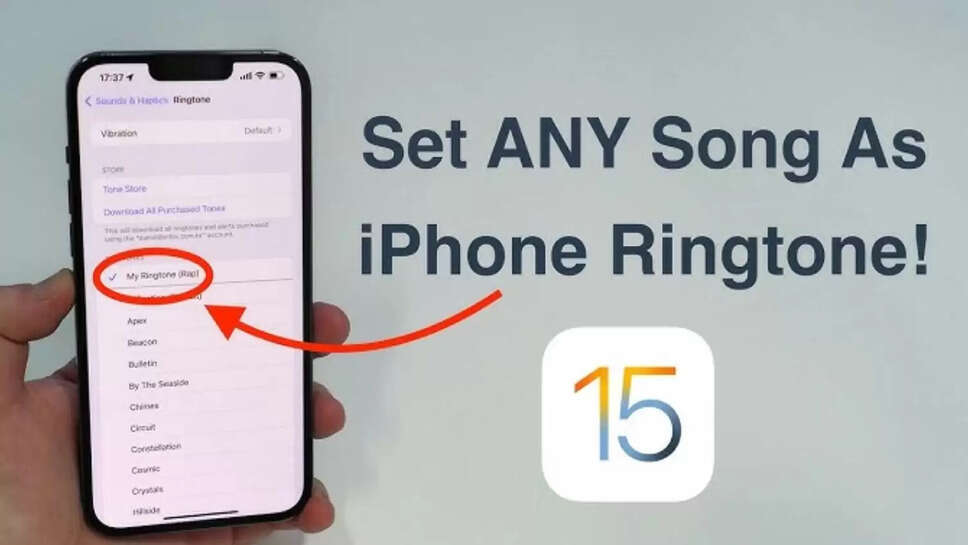
How to Change Ringtone on Android and iPhone: Your phone's ringtone isn't just a call alert, it also reflects your personality. Many users still stick to the default ringtone, while others don't like the ringtone they come with.
While it's very easy to change it on both Android and iOS, people often fail to take full advantage of this feature due to a lack of proper settings. Here, we're going to walk you through the step-by-step process of changing your ringtone on both Android and iPhone.
How to change ringtone on Android phone
To change your ringtone on an Android smartphone, first go to the Settings app. There, you'll find the Sound or Sound & Vibration option, where you can select Phone Ringtone. Here, you can set your desired ringtone. You can also select your downloaded MP3 file in addition to the default tone.
How to make your favorite song ringtone on Android
If you want to set a specific song as your ringtone, Android offers complete freedom. You can set an audio file as your ringtone by going to the phone's File Manager or Ringtone settings.
Many phones offer the option to select a tune directly from the music file, using the Add Ringtone or Plus icon.
This allows you to select a tune directly from the music file. This song then becomes your call ringtone. You can also download your favorite tune for free online.
Easy process to change ringtone on iPhone
To change your iPhone ringtone, go to Settings > Sounds & Haptics. The Ringtone section here displays a list of Apple's default tones, from which you can choose.
Your chosen ringtone is saved instantly, and no additional keystrokes are required. Changing your ringtone in iOS is simple, but the options are limited.
How to set a custom ringtone on iPhone
To set your favorite song as a ringtone on your iPhone, you need a tool like GarageBand or iTunes. Apple doesn't allow you to directly set an MP3 file as a ringtone.
You need to convert the song into a 30-second tone and save it in the ringtone format. The process is a bit lengthy, but once set, the same tune plays on every call.
iPhone
Apple